

Jitsi Meet is a free, open-source video conferencing tool that allows you to start or join meetings without signing up. Unlike Zoom or Google Meet, Jitsi Meet prioritizes privacy and does not store personal data. You can open a Jitsi meet video conference link with any web browser. But some people have problems getting their microphone and camera working on Jitsi meet.
If you are having problems getting either your microphone or your camera working on a Jitsi Meet video conference, it likely has to do with your web browser permission settings. To fix this problem, open your web browser and go to the meeting link. Then click the padlock icon just to the left of the word “meet” in the left side of your browser's address bar.
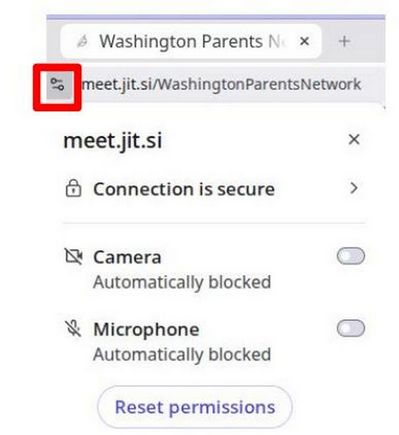
Note that both the camera and the Microphone are set to automatically blocked. Click on the icons to the right to change these settings to “using now”.
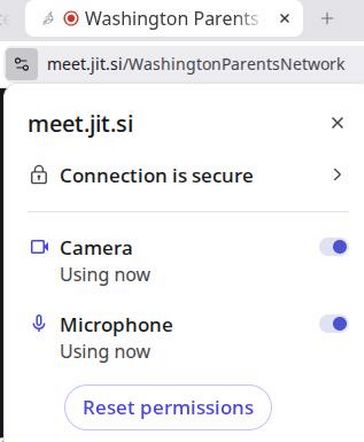
Then refresh the page. The video conference sign in page should now look like this:
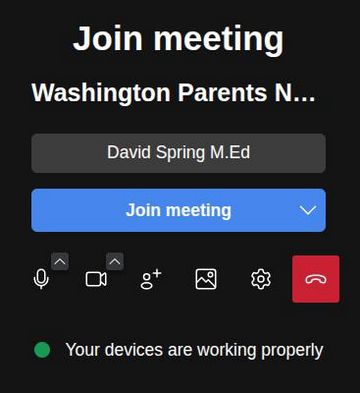
Click “Join meeting.” Then once in the meeting, hover your pointer over the bottom of the screen to bring up these icons.

If you are still having issues with either your mic or your camera, click on the three dots to bring up the settings screen. Then click on Settings.
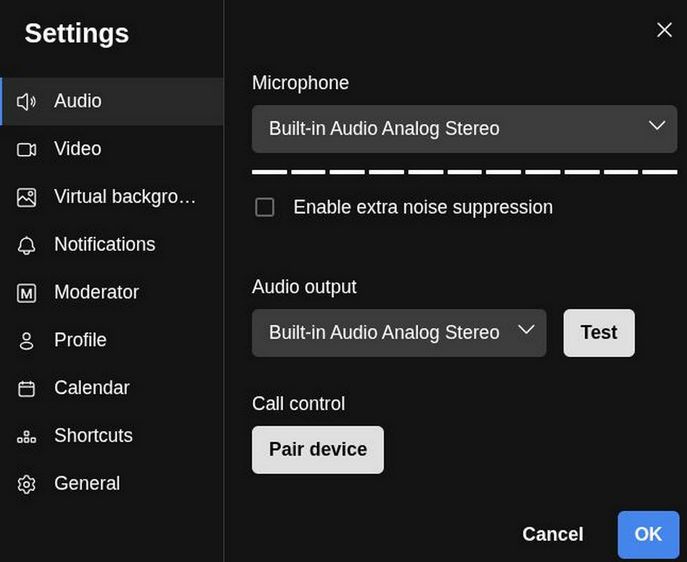
Here you can choose your audio device by clicking on the drop down arrow on the right. Click on Video to choose your camera. You can change your display name by clicking on the word Profile in the left side menu.