

Using your phone to call into a Jitsi Meet video conference can be very useful if you are driving, have limited data, or lack access to a computer. It is also useful for those hosting a Jitsi video conference if you are expecting more than 100 participants as audio only participants take up much less band width that video participants. To call into a Jitsi Meet conference using a regular phone, all you will need is the specific meeting's dial-in phone number and its associated PIN number.
Meeting Leader Phone in Tips
Test the phone link process in advance. Open a web browser and go to https://meet.jit.si/
Enter a meeting name such as ourexamplevideoconference:
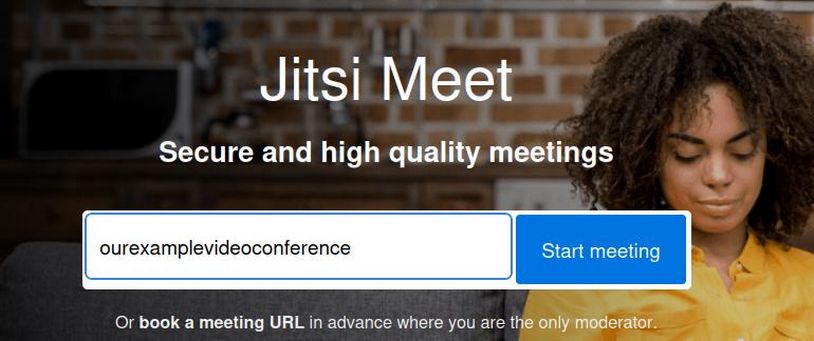
Click Start meeting which will go to this link: https://meet.jit.si/ourexamplevideoconference
and display this screen:
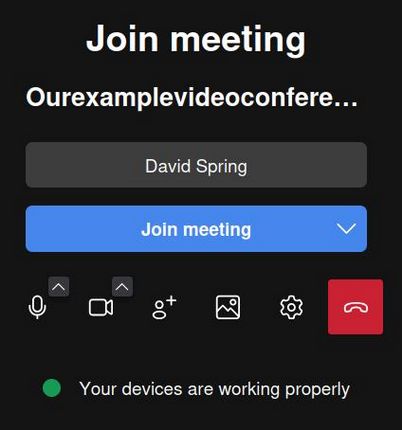
Click the People Plus icon to invite people:
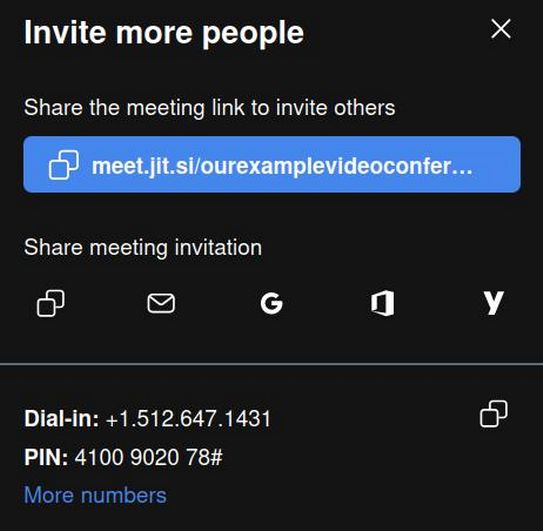
Here you will find the link to the meeting and also find a dial in phone number with a PIN number. You can share either the link or the phone number or both with your members. Note that in the US, the Dial In Phone number is often the same from meeting to meeting. And the PIN number will likely be the same for each meeting if the name of the meeting does not change. But if the name of your meeting changes each month, then the PIN number to phone into the meeting will also change.
Click on the Copy Icon to copy both the phone number and the pin number into your computer clip board. Here is an example of the Jitssi Meet dial in number and a unique meeting pin number:
Dial-in: +1.512.647.1431 PIN: 4100 9020 78#
To start your meeting, if you are the leader of the meeting, arrive at the meeting a few minutes early and click Join Meeting and then click Log In to be the first person to log into the meeting. Once in the meeting, you can still find the phone number and PIN number by clicking on the Meeting Participants icon at the bottom of the screen. Then click on the Invite People Plus icon.
To join a Jitsi Meet meeting by phone, check the meeting invitation you received from the host. It will list the phone number and a numeric PIN. Alternately, you can visit the meeting link provided by opening any web browser and entering the link. (Android and Apply both provide Jitsi apps you can use too). Then before logging in, click on the People Plus icon to display the meeting phone number and PIN number. You can then close the browser app and call the provided phone number using your mobile phone or landline. When prompted, type the conference PIN followed by the pound sign (\(\#\)). You are now in the call as an audio-only participant. Press *6 on your phone's keypad to mute or unmute yourself during the call.